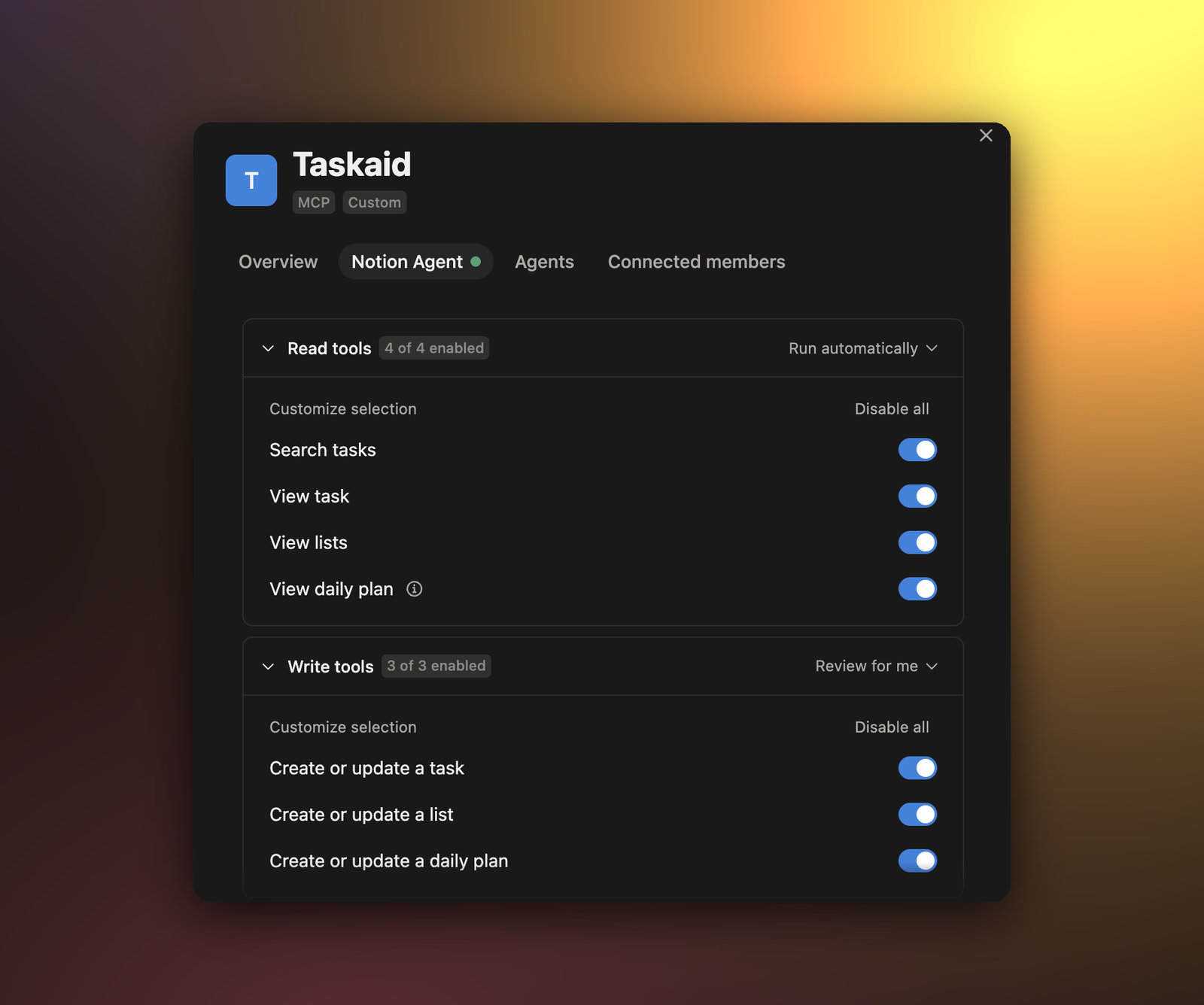
Notion Agent can work with your tasks while it works in your pages. Ask what's due in Taskaid and it answers from your real tasks. Ask it to turn a page's action items into tasks, and they become Taskaid tasks with a day on each.
No API key. One URL, then a sign-in.
Connect
Add the connection in Notion on the web or desktop. Your workspace has to allow custom MCP servers; if it doesn't, see For workspace admins.
-
In Notion, open Settings → Connections.
-
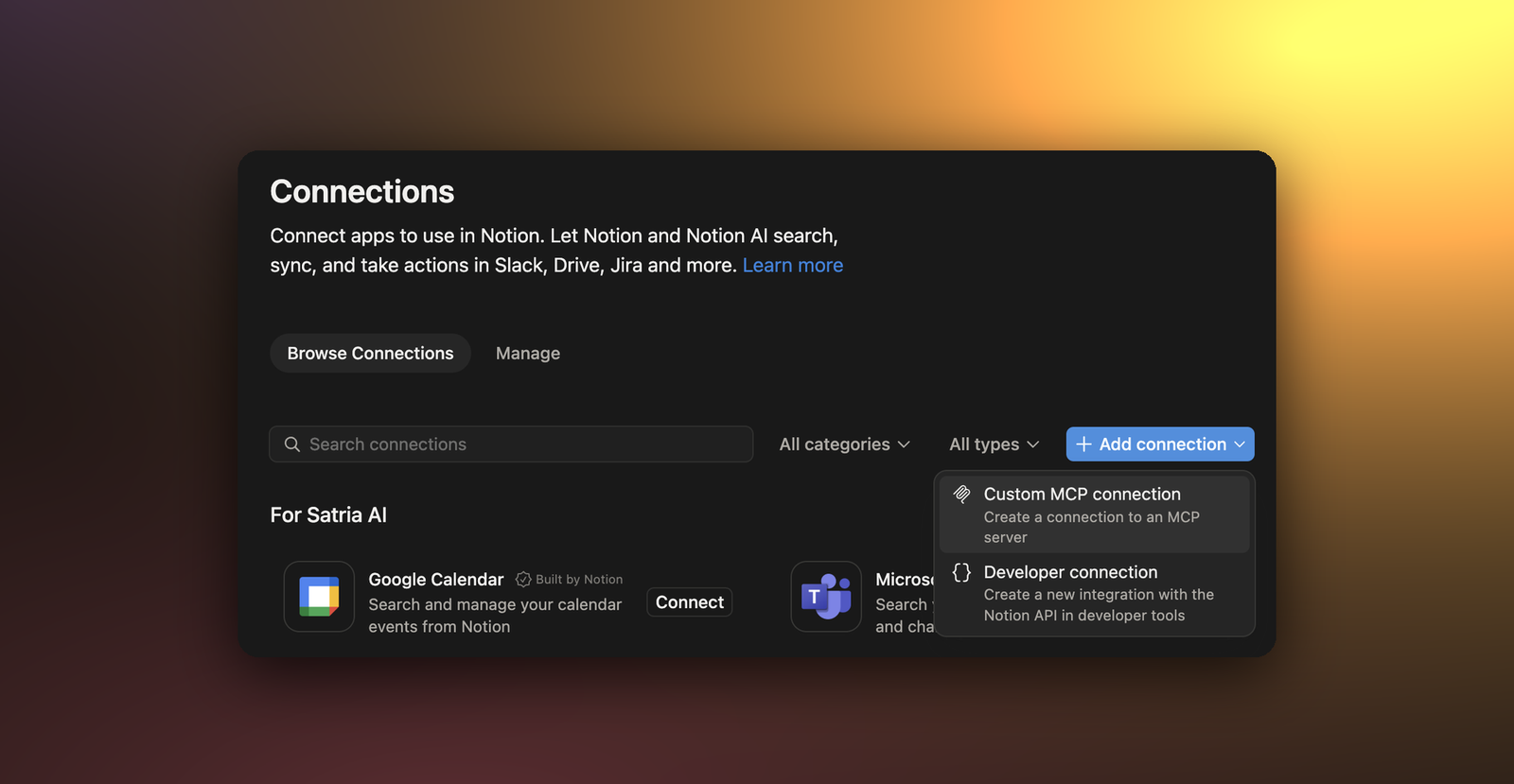
Select Add connection, then Custom MCP connection.
-
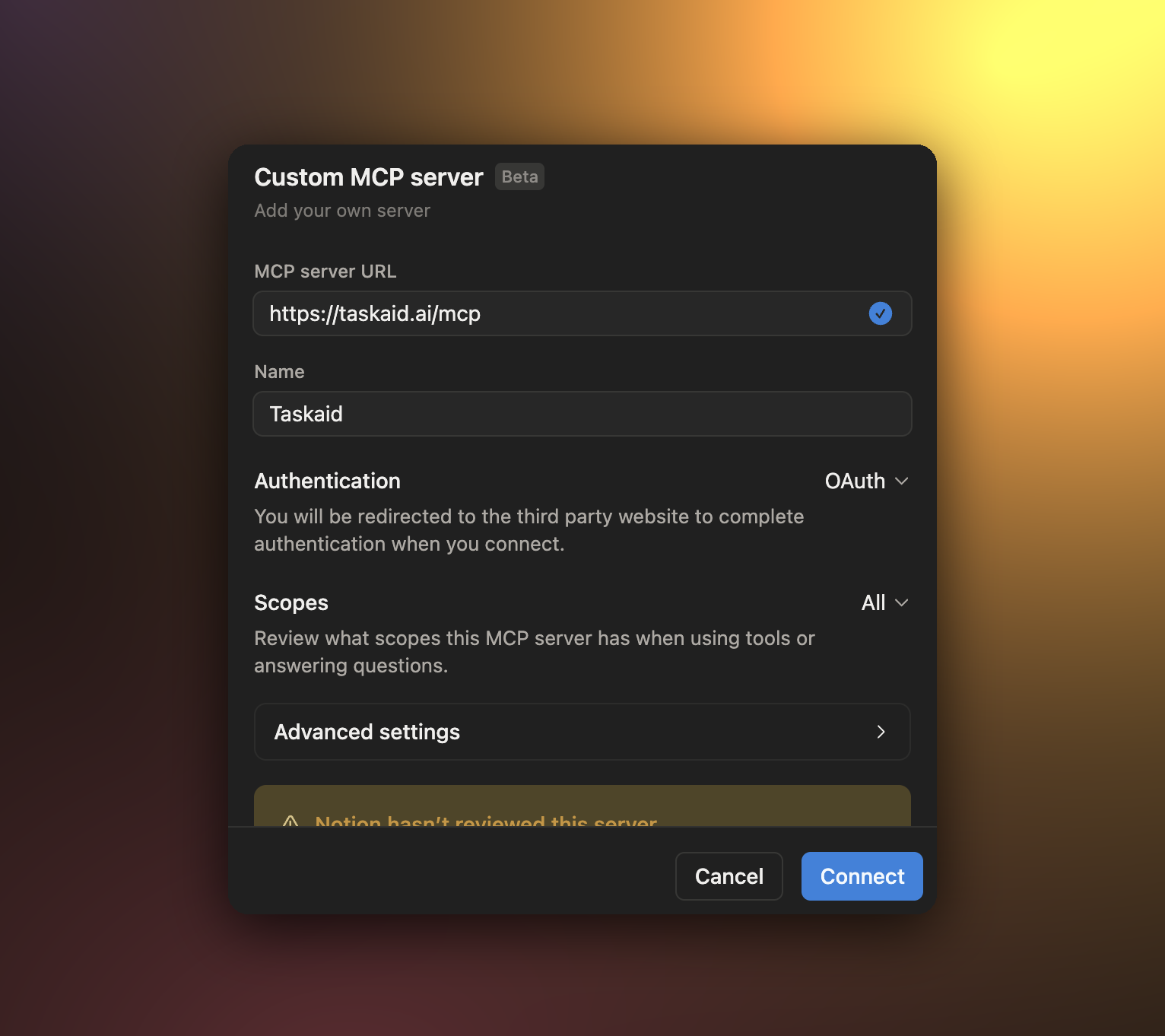
Paste this as the MCP server URL, and enter
Taskaidas the Name:https://taskaid.ai/mcp -
Leave Authentication on OAuth and select Connect.
-
Sign in to Taskaid in the pop-up window, and approve the access you want to grant.
Taskaid then shows under Connected. Notion warns that it hasn't reviewed the server, as it does for every custom server. Notion identifies itself to Taskaid when you sign in, so there's no key, header or client ID to enter.
In a Custom Agent
Custom Agents don't use the connections you add for Notion Agent. Open the agent's Settings → Tools & Access, select Add connection → Custom MCP server, enter https://taskaid.ai/mcp, and sign in again. Each agent needs its own connection.
For workspace admins
If Custom MCP connection is missing, a workspace admin turns on Enable custom MCP servers under Settings → Connections → Manage.
Try it
Name Taskaid in what you ask. Notion has tasks of its own, and without the name it may look there instead.
- "What's due today or overdue in Taskaid?"
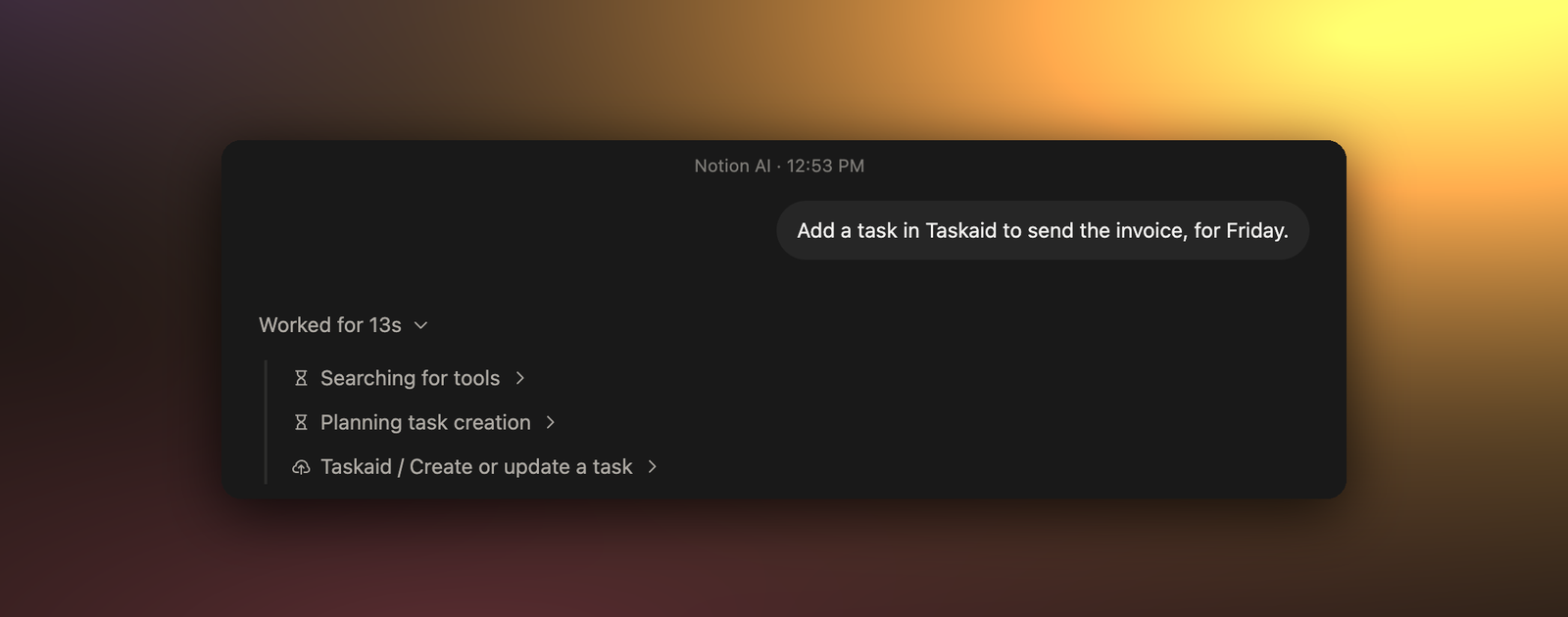
- "Add a task in Taskaid to send the invoice, for Friday."
- "Turn the action items on this page into Taskaid tasks for this week."
- "Read TASKAID-45 in Taskaid and tell me where it stands."
More starting points on the Assistants page.
What Notion can do
Notion sorts Taskaid's tools into read tools and write tools, each with its own approval setting. In Notion Agent, read tools run automatically and write tools start on Review for me, where Notion asks you only about actions it judges unsafe, so adding or updating a task usually goes ahead without asking. To approve every change yourself, set Write tools to Always ask: open Settings → Connections → Connected, select Manage next to Taskaid, and choose the Notion Agent tab. You can switch off single tools there too.
Taskaid has no delete tool, so Notion cannot delete anything even if you ask it to, and every task it creates records Notion as where it came from.
Every action runs as your own account, limited to what you approved, and Taskaid doesn't use your data to train AI models. For the tools themselves see the MCP server reference, and our Privacy Policy and Terms of Service for everything else.
Manage or disconnect
In Notion, open Settings → Connections → Connected, select Manage next to Taskaid, choose the Notion Agent tab and select Disconnect for me. To end Taskaid's access as well, open Settings in Taskaid and disconnect Notion under Connected apps.
Troubleshooting
There's no Custom MCP connection option. A workspace admin has to turn on Enable custom MCP servers under Settings → Connections → Manage.
Notion answers from its own tasks, or finds nothing in Taskaid. Name Taskaid in your request, as in the examples above.
Notion changed a task without asking. That's the Review for me setting. Set Write tools to Always ask to approve every change.
Notion asks you to sign in again, or Taskaid stops answering. Your access token expired or was revoked. Disconnect Taskaid and connect it again.