Codex can read and update your tasks while it works on your code. Ask it to pick up a task by its reference and carry on from the note, park a follow-up it noticed as a task with a day on it, and mark the task done when the change is in.
No API key. Install the plugin once, or add one URL, then a sign-in.
Connect
There are two ways in, and you only need one. The Codex CLI, the IDE extension and the ChatGPT desktop app share one configuration, so whichever you set up is there in all of them, except that the IDE extension doesn't load plugins.
The plugin
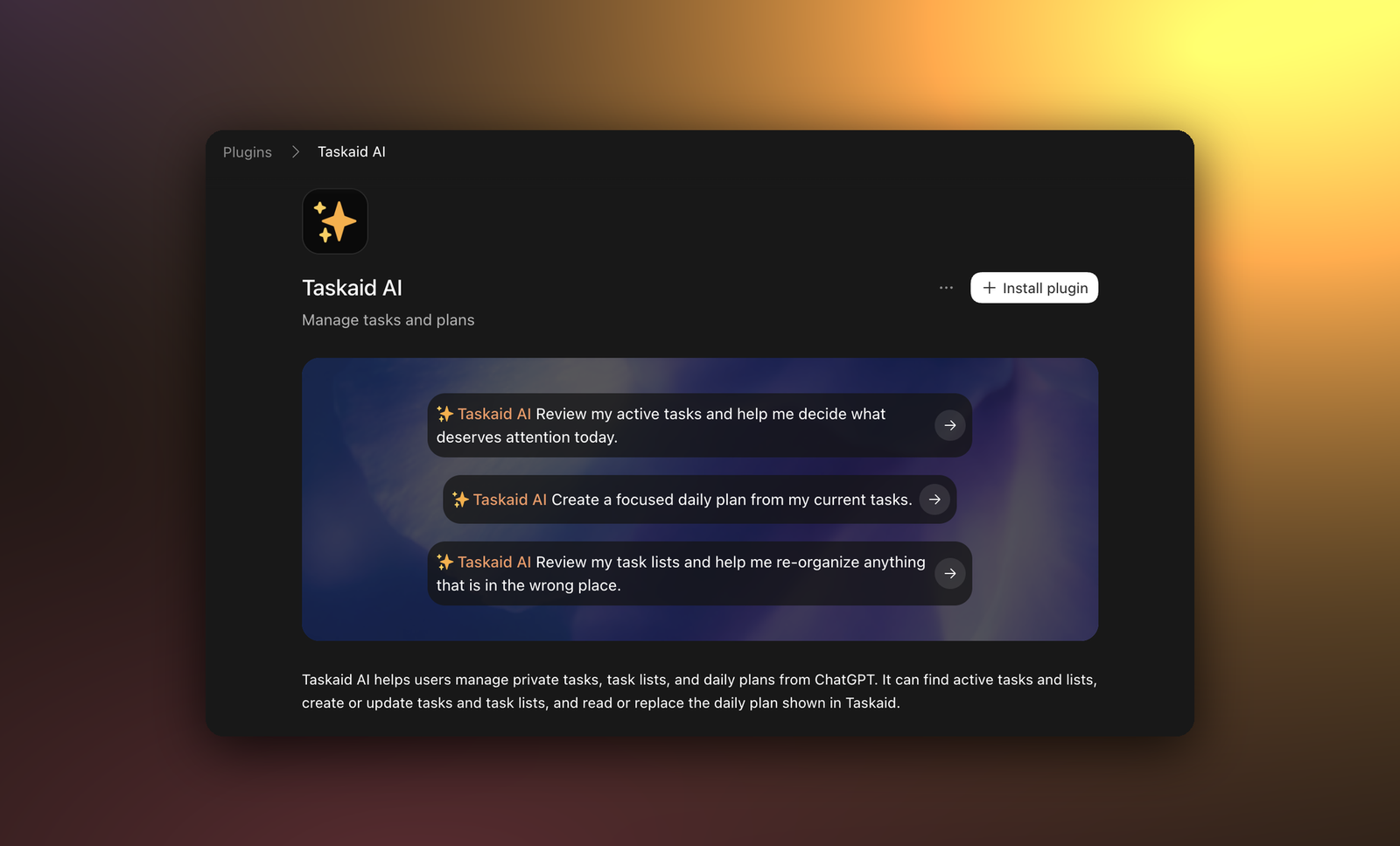
Codex uses the same plugin directory as ChatGPT. If you've already installed Taskaid in ChatGPT, Codex has it too, signed in to the same account, and there's nothing more to do.
Otherwise:
- In the Codex CLI, type
/plugins. In the ChatGPT desktop app, open Customize → Plugins. - Find Taskaid AI and select Install plugin.
- Sign in and approve the access you want to grant.
The MCP server
This works everywhere Codex runs, the IDE extension included. Run:
codex mcp add taskaid --url https://taskaid.ai/mcpCodex sees that Taskaid signs in with OAuth and opens your browser straight away. Sign in and approve the access you want to grant. There's no client ID or secret to pass; Codex identifies itself to Taskaid on its own.
The command adds this to ~/.codex/config.toml, which you can also write by hand:
[mcp_servers.taskaid]
url = "https://taskaid.ai/mcp"
If you add it by hand, run codex mcp login taskaid to sign in.
Try it
- "Read TASKAID-45 and carry on from its note."
- "Add a task to remove the old migration script next Friday, in the Backend list."
- "Before you finish, save what you changed and why as a note on TASKAID-45, then mark it done."
- "What's on my plate today?"
A task's note is Markdown, so it's a fair place for Codex to leave the reasoning behind a change for the next session, in Codex or anywhere else. More starting points on the Assistants page.
What Codex can do
Codex's approval settings decide which tool calls it confirms with you first, and config.toml can set them per tool. Taskaid has no delete tool, so Codex cannot delete anything even if you ask it to.
Every task Codex creates records where it came from. Through the MCP server that's Codex. Through the plugin it's ChatGPT, because the plugin uses the connection you made in ChatGPT.
Every action runs as your own account, limited to what you approved, and your data is never used to train AI models. For the tools themselves see the MCP server reference, and our Privacy Policy and Terms of Service for everything else.
Questions
Should I use the plugin or the MCP server?
The plugin if you also use Taskaid in ChatGPT: one installation and one sign-in cover both. The MCP server if you work in the IDE extension, or if you want Codex to have a connection of its own, which you can disconnect without touching ChatGPT and which records Codex as the source of its tasks.
Does it work when I run Codex from a script?
Yes. codex exec uses the same plugin and server as an interactive session, so a script can read and update your tasks without opening the TUI.
Can I limit Taskaid to one project?
codex mcp add adds the server for every project, since your tasks aren't tied to a repository. To keep it to one, put the same entry in that project's .codex/config.toml instead. Codex reads project configuration only in projects you've marked as trusted.
Manage or disconnect
The plugin is shared with ChatGPT, so remove it there: open Settings → Plugins in ChatGPT, select Taskaid AI, and choose Uninstall.
For the MCP server, codex mcp logout taskaid deletes Codex's saved sign-in and codex mcp remove taskaid removes the server. To revoke access from Taskaid's side, open Settings and disconnect Codex under Connected apps.
Troubleshooting
Taskaid's tools show up twice. You've installed the plugin and added the MCP server. Keep one: run codex mcp remove taskaid, or uninstall the plugin.
codex mcp list shows Taskaid as "Not logged in". Run codex mcp login taskaid and approve once more.
Codex asks you to sign in again. Your access token expired or was revoked. Run codex mcp login taskaid, or reconnect the plugin from ChatGPT.
The IDE extension doesn't show the plugin. The extension doesn't load plugins. Add the MCP server instead.