Muse, Meta's assistant, can read and update your tasks from any chat. Ask what's on today and it answers from your real tasks. Hand it a task by its reference, and it can leave what it did in the note for the next conversation.
One question, then a sign-in.
Connect
Taskaid isn't in Muse's connector list, so there's nothing to look for in its settings. You ask Muse, and it sets the connection up itself.
-
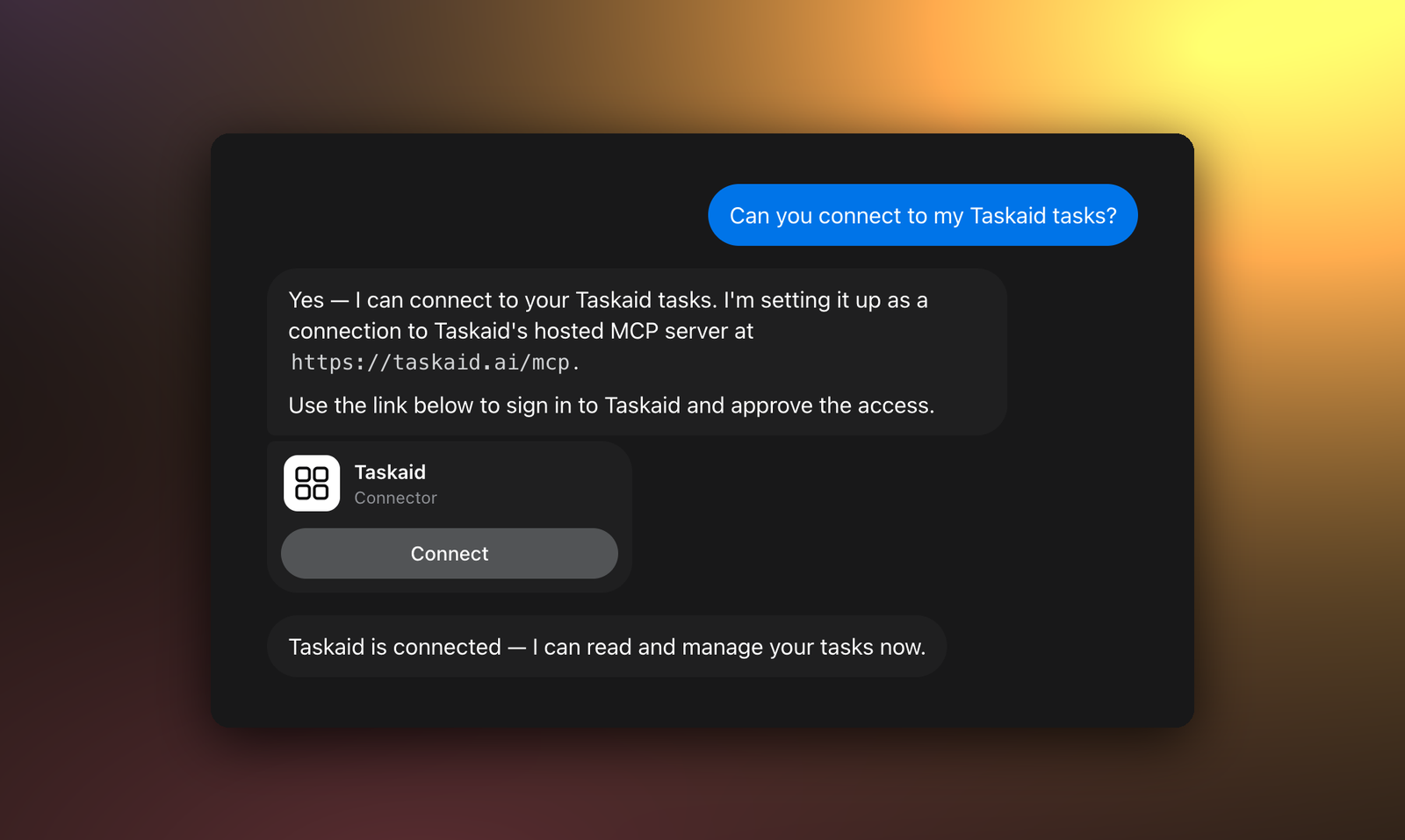
In a Muse chat, ask:
Can you connect to my Taskaid tasks?Muse replies with a Taskaid connector card. If it asks where Taskaid's server is, give it
https://taskaid.ai/mcp. -
Select Connect on the card.
-
Sign in to Taskaid, review the access Muse asks for, and select Approve. Muse says Taskaid is connected when it's done.
Muse identifies itself to Taskaid when you sign in, so there's no key or client ID to enter.
Try it
- "What's on my plate today?"
- "Review my daily plan for tomorrow."
- "Read TASKAID-45 and carry on from its note."
- "Add a task to renew the domain on the 1st of next month."
A task's note is Markdown, so it's a good place for Muse to leave findings and next steps for whoever picks the task up next, in Muse or in any other assistant you use. More starting points on the Assistants page.
What Muse can do
Muse works with your tasks as part of the conversation, and its activity panel shows each time it used Taskaid. It asks before it changes anything, and you can allow a change once or keep allowing it. To have it ask before every action, reads included, open Settings → Permissions and choose Always ask under Connector defaults.
Taskaid's connector has no delete tool, and every task Muse creates records Muse as where it came from.
Every action runs as your own account, limited to what you approved, and Taskaid doesn't use your data to train AI models. For the tools themselves see the MCP server reference, and our Privacy Policy and Terms of Service for everything else.
Manage or disconnect
In Muse, open Settings → Connectors and choose Connected. Select View beside Taskaid, then Disconnect. To revoke access from Taskaid's side, open Settings and disconnect Muse under Connected apps.
Troubleshooting
Taskaid isn't under Settings → Connectors. It appears there, marked Custom, only after you've connected it. Ask Muse in a chat, as above.
Muse asks you to connect again. Your access was revoked or has lapsed. Select Connect on the card and approve once more.