OpenClaw is a personal assistant that runs on your own computer and answers you in the chat apps you already use, such as Telegram, WhatsApp or Slack. With Taskaid connected, you can ask it what's on today from your phone, hand it a task by its reference, and have it leave what it did in the note for the next conversation.
One server to add, then a sign-in.
Connect
Install OpenClaw with its installer if you haven't already. Then there are two ways in, and you only need one. OpenClaw's settings connect Taskaid without stopping OpenClaw. The terminal works where you can't open its dashboard, but your chats pause while you use it.
In OpenClaw's settings
-
Open OpenClaw's dashboard on the machine that runs it and go to Settings → MCP. From a terminal,
openclaw dashboardopens the dashboard. -
Select Add server. Enter
taskaidas the name, keep Streamable HTTP as the transport, and paste the server URL:https://taskaid.ai/mcpSelect Add server again to save it.
-
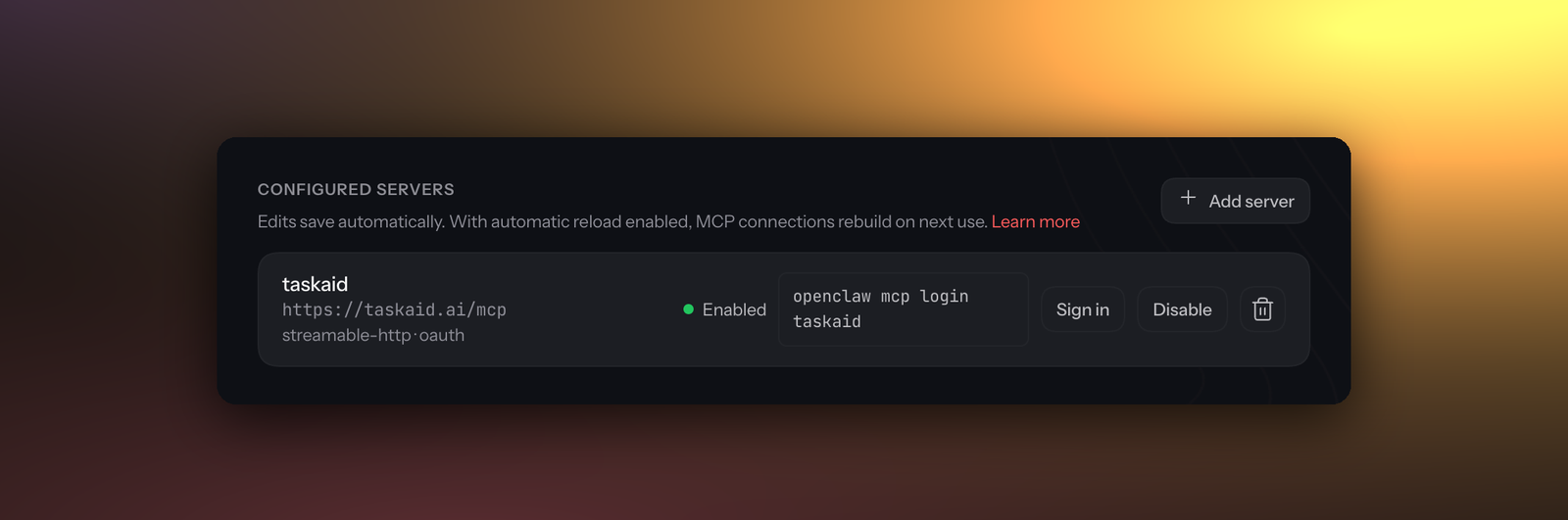
Further down the page, under MCP Servers, find the
taskaidentry and typeoauthin MCP Server Auth. It saves by itself, and a Sign in button appears beside the server. -
Select Sign in. Taskaid opens in a new tab; approve the access you want to grant. OpenClaw shows Authentication saved when it's done.
To check from a terminal, openclaw mcp status --verbose shows oauth: authorized.
From a terminal
From a terminal, OpenClaw adds servers and signs in only while its Gateway is stopped.
-
Stop the Gateway:
openclaw gateway stop -
Add Taskaid:
openclaw mcp add taskaid --url https://taskaid.ai/mcp --transport streamable-http --auth oauthKeep
--transport streamable-http. Without it, OpenClaw uses the older SSE transport. -
Sign in:
openclaw mcp login taskaidOpenClaw prints a link. Open it in your browser and approve the access you want to grant. OpenClaw waits up to five minutes and prints MCP OAuth credentials saved for "taskaid" when it's done.
-
Check the connection:
openclaw mcp probeIt reports taskaid: 7 tools.
-
Start the Gateway again:
openclaw gateway start
Either way, Taskaid notes that OpenClaw runs on your computer and can't be confirmed by name; approve if you started the sign-in. OpenClaw identifies itself to Taskaid when you sign in, so there's no client ID or secret to enter, and it refreshes the sign-in itself after that.
Try it
- "What's on my plate today?"
- "Read TASKAID-45 and carry on from its note."
- "Add a task to renew the domain on the 1st of next month."
- "When you're done, save what you found as a note on TASKAID-45 and mark it complete."
A task's note is Markdown, so it's a good place for OpenClaw to leave sources, findings and next steps for whoever picks the task up next, in OpenClaw or in any other assistant you use. More starting points on the Assistants page.
What OpenClaw can do
OpenClaw works with your tasks as part of whatever you ask it. Taskaid has no delete tool, so OpenClaw cannot delete anything even if you ask it to, and every task it creates records OpenClaw MCP as where it came from.
Every action runs as your own account, limited to what you approved, and Taskaid doesn't use your data to train AI models. For the tools themselves see the MCP server reference, and our Privacy Policy and Terms of Service for everything else.
Questions
Does it work from Telegram, WhatsApp and my other chats?
Yes, once you've signed in on the machine that runs OpenClaw. Every chat uses that saved sign-in. If it ever lapses, OpenClaw carries on without Taskaid rather than failing the conversation; sign in again from Settings → MCP or from the terminal, whichever you used.
What if OpenClaw runs on a server, not my computer?
Use the terminal steps on the server, and open the link that openclaw mcp login taskaid prints on your own computer. After you approve, your browser lands on a 127.0.0.1 address that won't load. Stop the waiting command, copy the code value from that address, and pass it back with Taskaid's address as the issuer:
openclaw mcp login taskaid --code <code> --issuer https://taskaid.aiManage or disconnect
In Settings → MCP, Disable turns Taskaid off without removing it, and the bin beside it removes the server. From a terminal, openclaw mcp configure taskaid --disable and --enable do the same, openclaw mcp unset taskaid removes the server, and openclaw mcp logout taskaid clears the saved sign-in on that machine. Each command needs the Gateway stopped: stop it, run the command, then start it again.
None of these tells Taskaid, so the connection stays listed until you revoke it. Open Settings and disconnect OpenClaw MCP under Connected apps.
Troubleshooting
No Sign in button beside taskaid. The server was added without OAuth. On the same page, under MCP Servers, type oauth in its MCP Server Auth field.
"This operation requires exclusive offline state ownership." OpenClaw's Gateway is running. Stop it with openclaw gateway stop, run the command again, then start it with openclaw gateway start. Or connect from Settings → MCP, which needs no stop.
"This site can't be reached" at 127.0.0.1 after you approve. openclaw mcp login had stopped waiting for you. Copy the code value from the address and run openclaw mcp login taskaid --code <code> --issuer https://taskaid.ai, or run openclaw mcp login taskaid again.
"requires OAuth authorization" from openclaw mcp probe. Your access was revoked, and openclaw mcp status --verbose shows pending-authorization. Select Sign in in Settings → MCP, or with the Gateway stopped run openclaw mcp login taskaid, and approve once more.