Gemini CLI can work with your tasks from the terminal. Pick up a task by its reference and carry on from its note, turn a follow-up into a task with a day on it, and close the task when the work is done.
No Taskaid API key. One install command, then a sign-in.
Connect
Gemini CLI no longer signs in with a personal Google account. Sign in to Gemini with a Gemini API key, or through a Gemini Code Assist Standard or Enterprise plan; Google's notice has the details.
-
Install the extension:
gemini extensions install https://github.com/satriahq/taskaid-pluginsGemini shows a notice about extensions from third parties. Confirm to continue.
-
Start
geminiand run/mcp auth taskaid. Your browser opens Taskaid's sign-in; approve the access you want to grant. -
Run
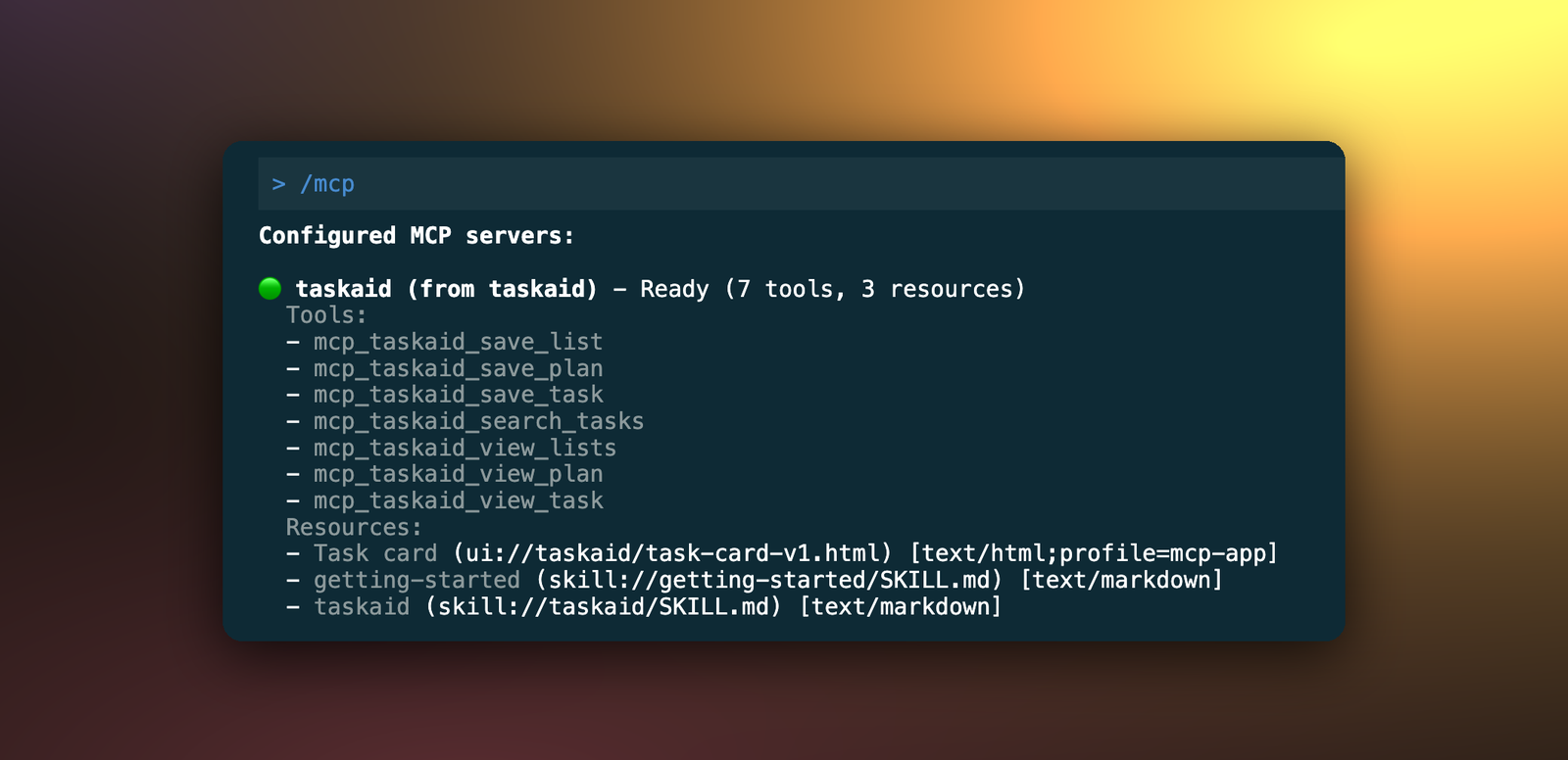
/mcp. Taskaid shows as Ready with its tools.
Gemini registers itself with Taskaid when you sign in, so there's no client ID or secret to enter.
Without the extension, add the server yourself:
gemini mcp add --scope user --transport http taskaid https://taskaid.ai/mcp--scope user makes it available in every project, since your tasks aren't tied to one. Without it, Gemini adds the server to the current project only. Sign in with /mcp auth taskaid as above.
Try it
- "What's on my plate today?"
- "Read TASKAID-45 and carry on from its note."
- "Add a task to update the README after this release, for Friday."
- "Save a summary of what we changed as a note on TASKAID-45, then mark it done."
A task's note is Markdown, so Gemini can leave what it found there for the next session, in Gemini CLI or in any other assistant you use. More starting points on the Assistants page.
What Gemini CLI can do
Gemini asks before it runs a tool. You can allow a call once, always allow that tool, or always allow every Taskaid tool. Taskaid has no delete tool, so Gemini cannot delete anything even if you ask it to. Tasks it creates record "Gemini CLI MCP Client", the name Gemini registers with, as where they came from.
Every action runs as your own account, limited to what you approved, and Taskaid doesn't use your data to train AI models. Once your tasks are in Gemini, Google's terms for how you sign in apply. For the tools themselves see the MCP server reference, and our Privacy Policy and Terms of Service for everything else.
Questions
Can I keep Taskaid out of one project?
Yes. Run gemini extensions disable --scope workspace taskaid inside that project, and gemini extensions enable --scope workspace taskaid to bring it back. Every other project keeps it.
Manage or disconnect
gemini extensions disable taskaid turns the extension off without removing it, and gemini extensions uninstall taskaid removes it. Gemini keeps your Taskaid sign-in either way, and installing again reconnects without asking. To end Taskaid's access, open Settings and disconnect Gemini CLI MCP Client under Connected apps.
Troubleshooting
"Failed to sign in … no longer supported for Gemini Code Assist for individuals." That's Gemini's own sign-in, not Taskaid's. Use a Gemini API key, or a Code Assist Standard or Enterprise plan.
"MCP servers are configured but disabled because this folder is untrusted." Gemini turns MCP servers off in folders you haven't trusted, Taskaid included. Trust the folder when Gemini asks, or start it from one you've trusted.
Taskaid shows "Disconnected (OAuth not authenticated)". Run /mcp auth taskaid and approve.
Gemini asks you to sign in again. Your access token expired or was revoked. Run /mcp auth taskaid.