Antigravity can read and update your tasks while it works in your project. Ask it to pick up a task by its reference and carry on from its note, park a follow-up it noticed as a task with a day on it, and close the task when the work is done.
No Taskaid API key. Add the server, then sign in once.
Connect
If you installed Taskaid's extension in Gemini CLI, Antigravity can bring it over. The first time you run agy, it offers to import your Gemini CLI extensions, Taskaid's included, and agy plugin import gemini does the same later. An imported server is named taskaid_taskaid; sign it in as in step 2. agy plugin import gemini converts extensions only, so if you added Taskaid with gemini mcp add, follow the steps below.
Otherwise:
-
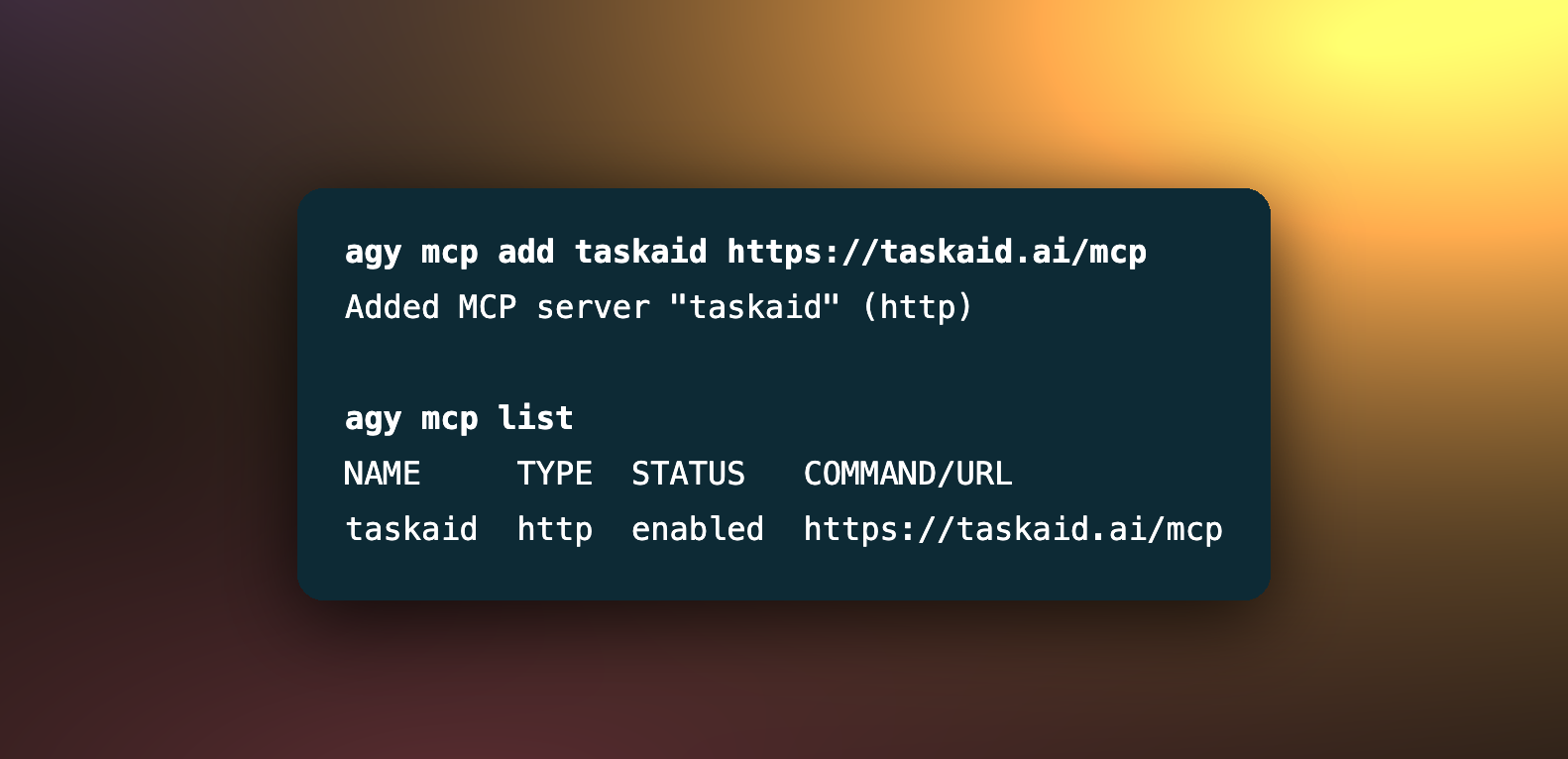
Add the server:
agy mcp add taskaid https://taskaid.ai/mcpAntigravity adds it for every project, since your tasks aren't tied to one.
-
Start
agy, type/mcpand press Enter. Select taskaid, which shows Auth Needed, press Enter and choose Authenticate. -
Your browser opens Taskaid's sign-in; approve the access you want to grant. Antigravity's page then shows a code. Paste it into
agyto finish.
Antigravity identifies itself to Taskaid when you sign in, so there's no client ID or secret to enter.
The Antigravity app reads the same list of servers and signs in on its own: open Customizations, then Installed, and choose Authenticate next to taskaid under MCP Servers.
Try it
- "Read TASKAID-45 and carry on from its note."
- "Add a task to remove the old config path after this ships, next Friday, in the Backend list."
- "Before you finish, save what we decided and why as a note on TASKAID-45."
- "What's on my plate today?"
A task's note is Markdown, so it's a fair place for Antigravity to leave the reasoning behind a change for the next session, in Antigravity or anywhere else. More starting points on the Assistants page.
What Antigravity can do
Antigravity asks before it uses a Taskaid tool. To stop it asking, allow the tools in Antigravity's permissions, for example with mcp(taskaid/*), or mcp(taskaid_taskaid/*) for an imported server. Taskaid has no delete tool, so Antigravity cannot delete anything even if you ask it to.
Every task it creates records where it came from, under the name Antigravity signs in with: Google Antigravity.
Every action runs as your own account, limited to what you approved, and Taskaid doesn't use your data to train AI models. For the tools themselves see the MCP server reference, and our Privacy Policy and Terms of Service for everything else.
Questions
Can I use Taskaid with agy -p?
Yes, once you've signed in from an interactive session. A one-shot run can't ask for approval, so allow Taskaid's tools first: add mcp(taskaid/*), or mcp(taskaid_taskaid/*) for an imported server, under permissions.allow in ~/.gemini/antigravity-cli/settings.json.
Manage or disconnect
agy mcp remove taskaid removes the server, and agy plugin uninstall taskaid removes an imported one. Antigravity keeps its sign-in after the server is gone, so to revoke access, open Settings and disconnect Google Antigravity under Connected apps.
Troubleshooting
/mcp shows taskaid as Unauthorized, with Auth Needed. You aren't signed in. Select it, press Enter and choose Authenticate.
agy -p says there are no taskaid tools. A one-shot run leaves out servers that aren't signed in. Sign in once from an interactive agy session.
agy -p stops because a tool "required the "mcp" permission". A one-shot run can't ask for approval. Allow Taskaid's tools as in the question above.