Cursor
Adding Taskaid to Cursor in one click, what the agent can do, and how to disconnect.
Cursor's agent can read and change your Taskaid tasks, lists and daily plan from inside the editor. Park something you noticed mid-change as a task with a day on it, pick a task up by its reference and carry on from its note, and mark it done when the fix lands.
No API key and no local server. One click or one JSON entry, then a sign-in.
Connect
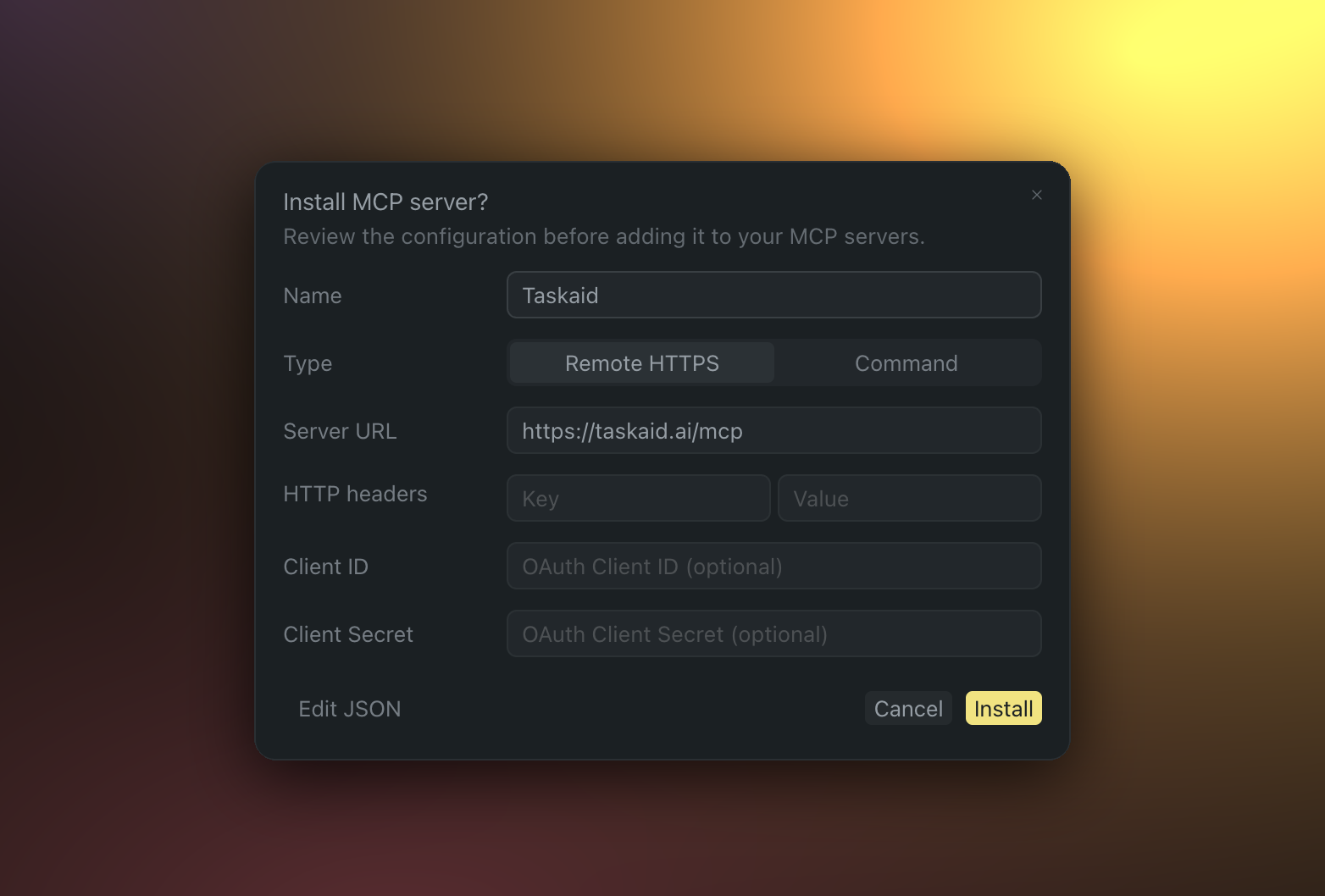
Cursor shows you what it's about to add, the name, the type and the URL, and waits for Install. Leave the headers, client ID and client secret empty; Taskaid registers its own OAuth client. Then sign in and approve the access you want to grant.
Without the link, add this to ~/.cursor/mcp.json in your home directory, so it's available in every project, or to .cursor/mcp.json inside one project:
{
  "mcpServers": {
    "Taskaid": {
      "url": "https://taskaid.ai/mcp"
    }
  }
}
Save the file and sign in when Cursor prompts you. No command, no header, no client ID or secret.
Try it
- "Read TASKAID-45 and pick up where it left off."
- "Save what we decided about the retry backoff as a note on TASKAID-45."
- "Add a task to remove the feature flag once this ships, next week, in the Backend list."
- "What's in my Inbox that mentions the migration? Schedule it for tomorrow."
A task's note is Markdown, so it's a fair place for the agent to leave the reasoning behind a decision for the next session, in Cursor or anywhere else. More starting points on the Assistants page.
What Cursor can do
Cursor asks for approval before using an MCP tool by default, so each read or write is shown to you first. Its run modes let you allowlist the ones you'd rather not confirm. Taskaid has no delete tool, so the agent cannot remove a task or a list even if you ask it to, and every task it creates records Cursor as where it came from.
Every action runs as your own account, limited to what you approved, and your data is never used to train AI models. For the tools themselves see the MCP server reference, and our Privacy Policy and Terms of Service for everything else.
Manage or disconnect
Turn the server off under Customize in Cursor's sidebar, or remove the entry from mcp.json. To revoke access from Taskaid's side, open Settings and disconnect Cursor under Connected apps.
Troubleshooting
Nothing happens when you click the link. The browser hands it to Cursor, so Cursor has to be installed on this machine. Use the file instead.
Taskaid doesn't appear, or shows no tools. Check the URL is exactly https://taskaid.ai/mcp, then restart Cursor.
Cursor asks you to sign in again. Your access token expired or was revoked. Sign in and approve once more.
You were told to run it through npx or mcp-remote. You don't need to. Cursor connects to remote servers directly. If you have such an entry, replace it with the one above.