ChatGPT
Connecting the Taskaid app in ChatGPT, what it can reach, and how to disconnect.
Taskaid is available as an app in ChatGPT. Once connected, you can manage your tasks, lists, and daily plan by just asking — no tab switching, no copy-paste. Ask "what's on my plate today?" and ChatGPT pulls it straight from Taskaid; say "add a task to review the Q3 brief tomorrow" and it's saved to your account.
Connect
Apps work on every ChatGPT plan, including Free.
- Open the Taskaid listing in the ChatGPT Apps directory — or, inside ChatGPT, go to Settings → Apps (or the Apps entry in the sidebar) and search for Taskaid.
- Select Connect. Your browser opens to sign in and approve the access Taskaid requests.
- That's it — Taskaid is ready in every chat.
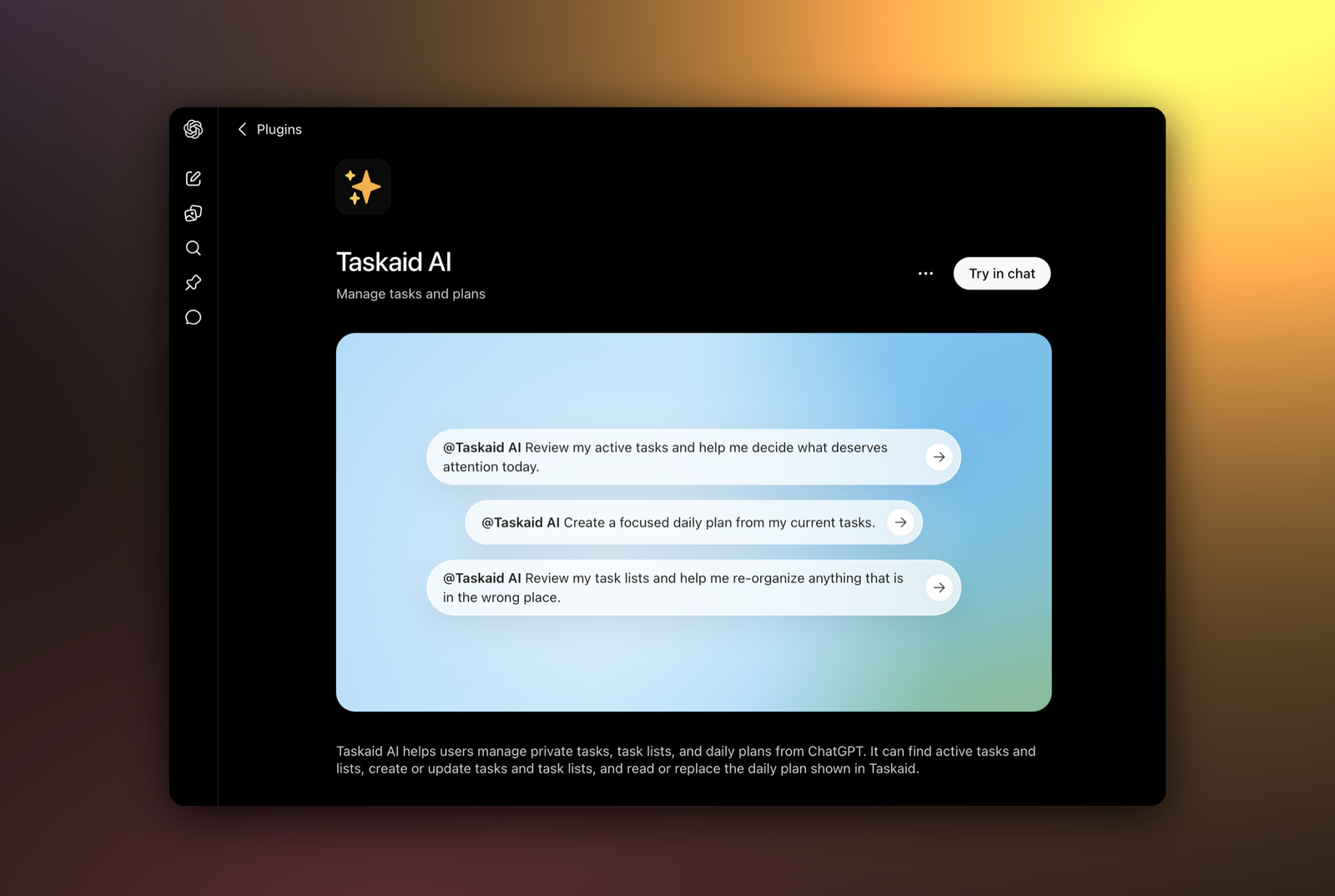
Use it
Bring Taskaid into a conversation by typing @Taskaid in your prompt, or choose + → More and pick Taskaid. Then just ask:
- "What's on my plate today? Include my daily plan."
- "Add a task to review the Q3 brief tomorrow morning, and star it as important."
- "Create a Taskaid list called Launch with a rocket emoji."
- "Read my tasks for today, then write me a focused daily plan."
Everything you do through ChatGPT syncs with your Taskaid account, so it shows up on taskaid.ai and anywhere else you use Taskaid.
What it can access
On first use you approve exactly what ChatGPT can do — viewing and managing your tasks, lists, and daily plan. Every action runs as your own account, limited to what you approve. Taskaid never reads your other ChatGPT conversations, memory, or uploaded files, and your data is never used to train AI models. See our Privacy Policy and Terms of Service for details.
Manage or disconnect
Open Settings → Connectors in ChatGPT, select Taskaid, and choose Disconnect. You can reconnect any time — it'll prompt you to sign in again on next use.
Troubleshooting
- Asked to sign in again — your access token expired or was revoked; reconnect and approve once more.
- A request fails with a permissions error — disconnect and reconnect so Taskaid can request the access it needs.