Claude
Connect Taskaid to Claude in about a minute and start planning your day out loud instead of managing a list.
Connect Taskaid once and your tasks stop being a list you check. They become something you can think out loud with.
Ask "I've got 40 minutes before my next call, what should I pick up?" and Claude reads your real tasks, weighs what's starred against what's overdue, and gives you an answer. Say "move everything I didn't finish today to tomorrow morning" and it's done in your account before you've switched tabs. Ask it to read your week and write you a plan, and the plan lands at the top of your Taskaid home.
No API key. No config file to edit. One URL, one sign-in, and it works on every Claude plan, including Free.
Connect Claude (web and desktop)
-
Select + Add custom connector.
-
Paste this as the server URL:
https://taskaid.ai/mcp -
Select Add, then Connect.
-
Sign in and approve the access you want to grant.
Ignore Advanced settings. Taskaid registers its own OAuth client, so there's no client ID or secret to enter.
On the Free plan you get one custom connector at a time. If you're already using another, you'll need to swap it out or move to Pro or Max.
Connect Claude Code
-
Add the server from your terminal:
claude mcp add --scope user --transport http taskaid https://taskaid.ai/mcp--scope usermakes it available in every project, since your tasks aren't per-repository. Drop the flag to keep it to the current one. -
Start a session and run
/mcp. -
Select taskaid, choose Authenticate, and approve in the browser.
Already connected on claude.ai? Claude Code picks it up automatically when you're signed in with the same account, so you can skip this entirely.
Try it
Start with one of these:
- "What's on my plate today? Include my daily plan."
- "I've got 40 minutes. What's the best thing to pick up?"
- "Add a task to review the Q3 brief tomorrow morning and star it."
- "Read my tasks for this week, then write me a focused plan for today."
- "What did I not get to yesterday?"
Everything syncs with your account, so it shows up on taskaid.ai and everywhere else you use Taskaid.
What Claude can do
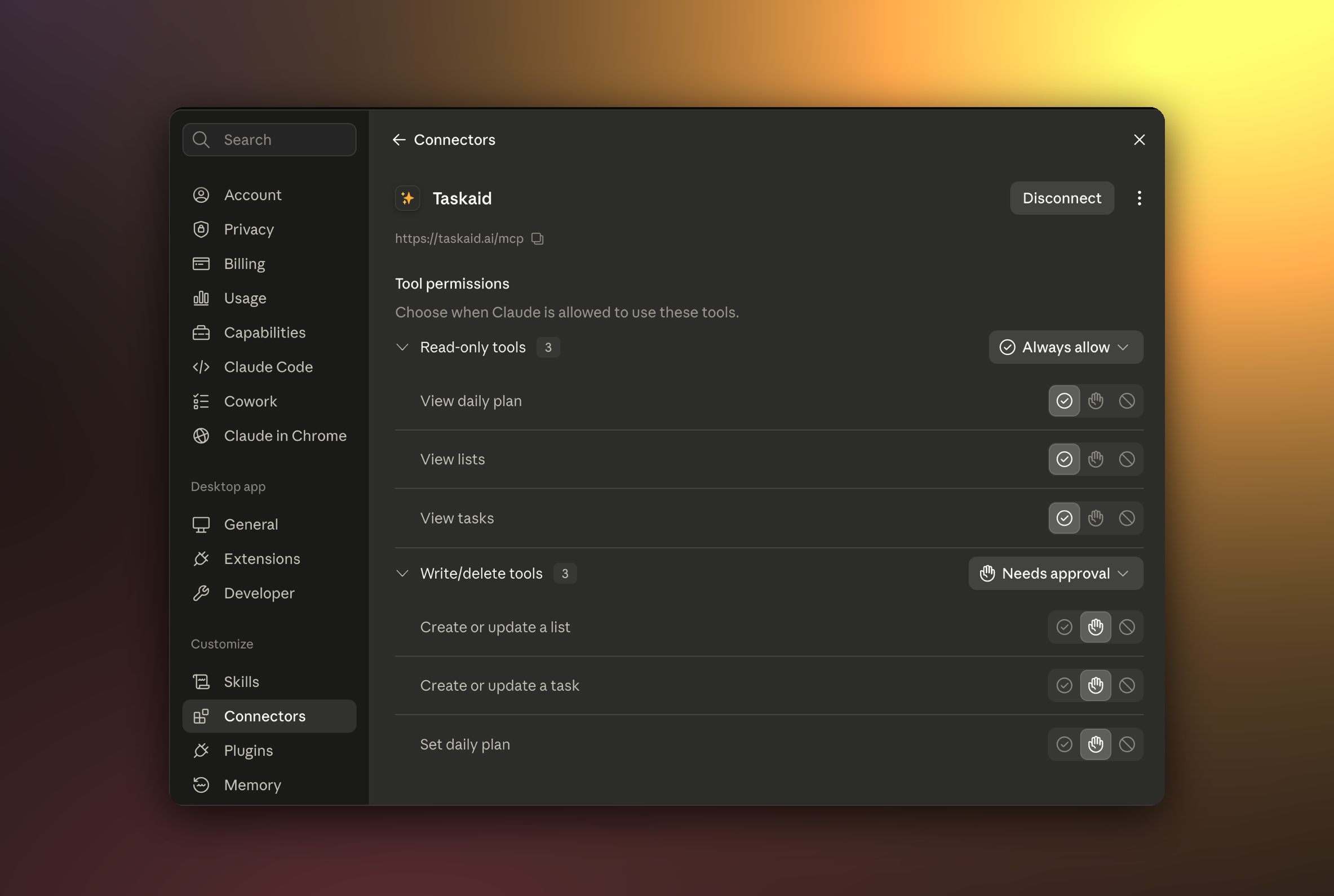
Claude sorts Taskaid's tools by whether they only read or can also write, and gives each group its own permission. Reads happen automatically. Writes ask you first, every time. You can change either, per group or per tool, under Settings → Connectors → Taskaid.
Nothing deletes. Claude labels the second group "Write/delete tools", but that's its generic name for the category. Taskaid's connector has no delete tool at all, so Claude cannot remove a task or a list even if you ask it to.
Every action runs as your own account, limited to what you approved, and your data is never used to train AI models. For the tools themselves see the MCP server reference, and our Privacy Policy and Terms of Service for everything else.
Manage or disconnect
In Claude, open claude.ai/customize/connectors, find Taskaid, and remove it from the three-dot menu. In Claude Code, run claude mcp remove taskaid.
Troubleshooting
"Needs authentication" in Claude Code. Expected right after adding. Run /mcp in a session, select taskaid, and choose Authenticate.
The connector won't add. Check the URL is exactly https://taskaid.ai/mcp. On the Free plan, check whether another connector is already using your one slot.
Claude asks you to sign in again. Your access token expired or was revoked. Reconnect and approve once more.
Taskaid's tools don't show up in a chat. Open the + menu in that conversation and confirm Taskaid is switched on for it.